How to Inspect a Case
In VIDIZMO DEM, cases are enclosed within folders containing evidence such as documents, images, videos, and recordings. Cases can be inspected for further investigation, with options to zoom in/out, annotate, and rotate images.
Prerequisites
- Belong to a group with Upload and management content feature enabled, or have a CAL that grants this permission.
- Belong to a group with Case feature enabled, or have a CAL that grants this permission.
- Have access to the case based on media access settings, group permissions, and portal security policies.
Inspect a Case
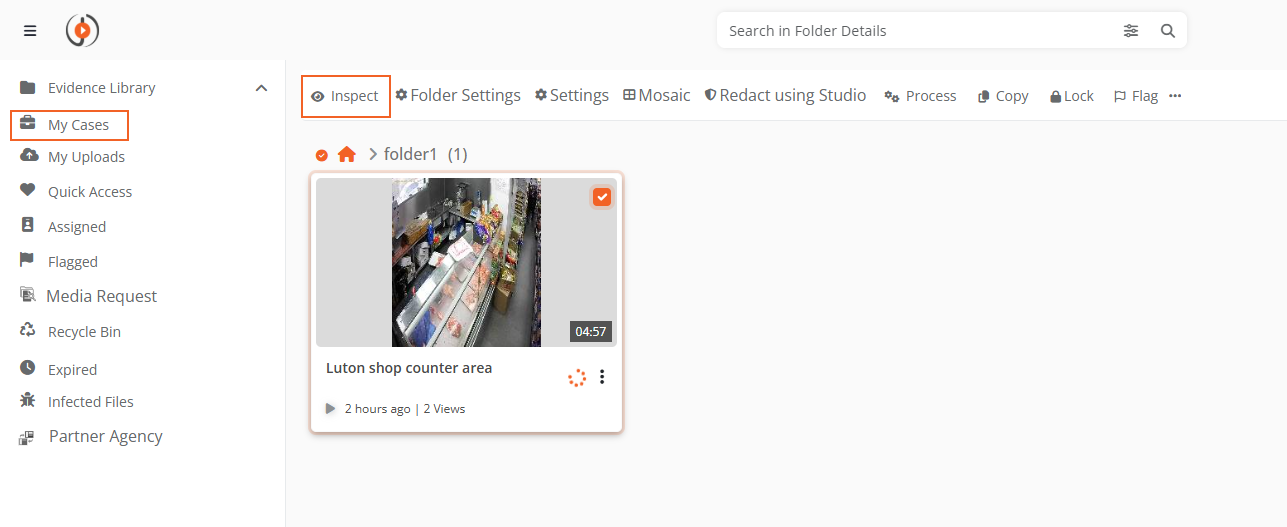
- In your DEM portal, go to My Cases.
- Select the case you want to inspect.
- Select the Inspect button.
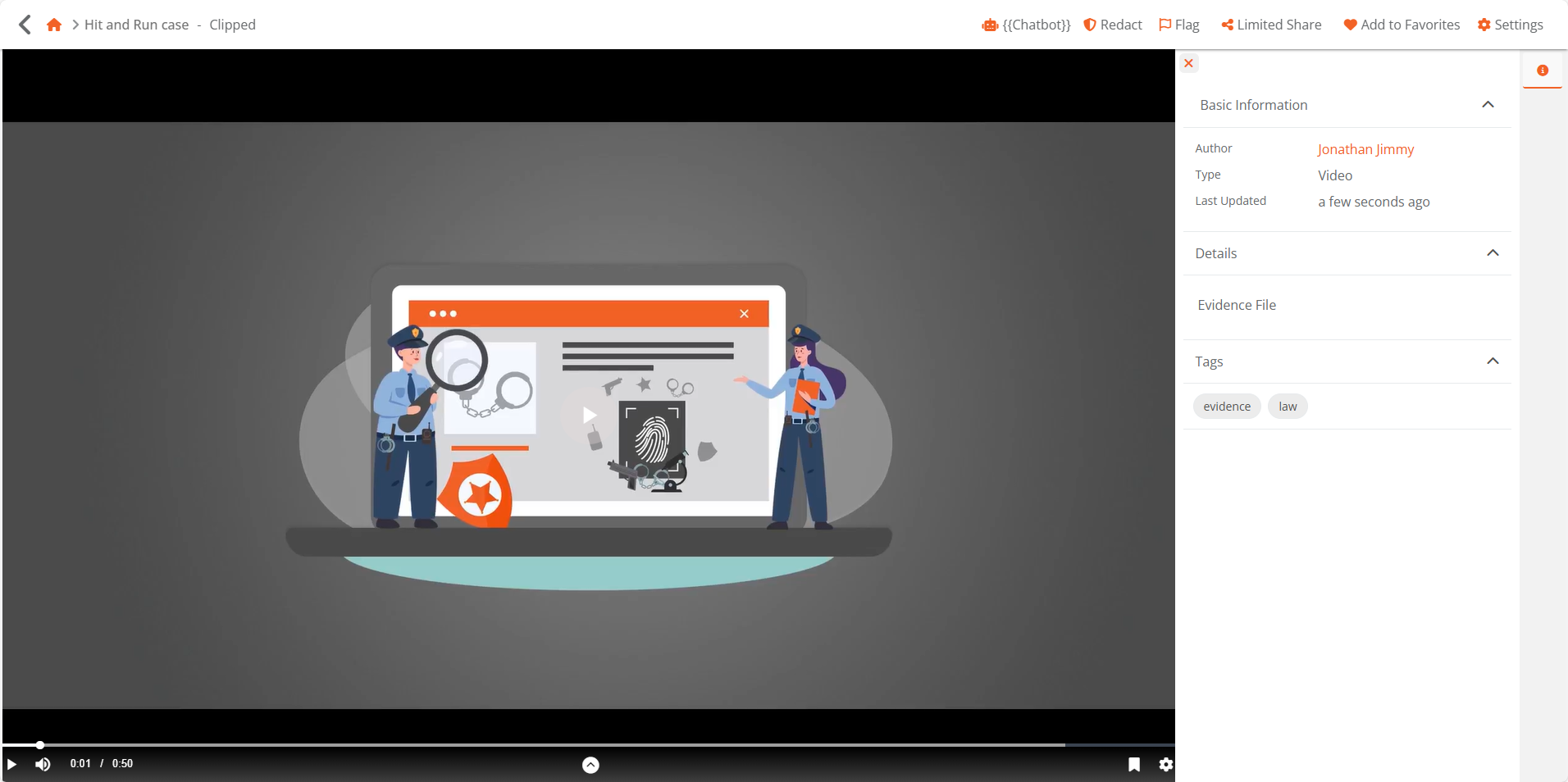
Case Inspection View
The Case Inspection page displays:
- Evidence list: Files arranged in user-defined order.
- Action bar (top-right): Options for download, share, add to quick access, and settings.
- Evidence details panel:
- Basic Information: Author, Type, Folder, Uploaded On, Description.
- Tags: Tags assigned to the evidence.